Table of Contents
Introduction
Discovering and Monitoring Targets in OEM 13c is the next step after successfully deploying the Oracle Management Agent. Once the Management Agent is installed and communicating with the Oracle Management Server (OMS), it can discover Oracle databases, listeners, hosts, ASM instances, and other supported targets for centralized monitoring and administration.
If you haven't deployed the Oracle Management Agent yet, we recommend completing the following articles first –
OEM 13c Agent Deployment Using Pull Method
OEM 13c Agent Deployment Using Push Method
External References:
Oracle Enterprise Manager Cloud Control Documentation
Oracle Enterprise Manager Target Discovery Documentation
Oracle Enterprise Manager Certification Matrix
By the end of this guide, your Oracle infrastructure will be fully integrated into Oracle Enterprise Manager Cloud Control, providing centralized monitoring, alerting, and performance management for your enterprise environment.
Prerequisites
Before discovering targets in Oracle Enterprise Manager Cloud Control, ensure the following requirements are met.
Required Components
1. Oracle Enterprise Manager 13c Cloud Control Installed
2. Oracle Management Server (OMS) Running
3. Oracle Management Agent Successfully Deployed
4. Oracle Database and Listener Running
5. Target Host Reachable from OMS
Network Requirements
1. Forward DNS Resolution Configured
2. Reverse DNS Resolution Configured
3. OMS and Target Host Can Resolve Each Other
4. Agent Upload Port Reachable
OEM Validation
1. Agent Status is Up
2. Agent Upload Status is Successful
3. OMS Console Accessible
4. Preferred Credentials Configured
5. Database Credentials Available for Target Discovery
After completing the above validation, proceed with Discovering and Monitoring Targets in OEM 13c.
Discovering and Monitoring Targets in OEM 13c
Step 1) Navigate to Auto Discovery Results
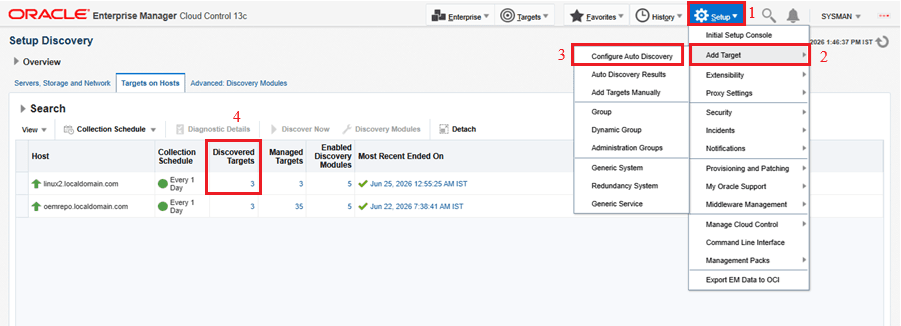
Log in to the Oracle Enterprise Manager Cloud Control Console using the SYSMAN account or a user with appropriate administrative privileges. From the OEM Console, navigate to Setup → Add Target → Configure Auto Discovery to view all hosts, databases, listeners, and other Oracle components that have been automatically discovered by the Management Agent.
Step 2) Review the Discovered Targets
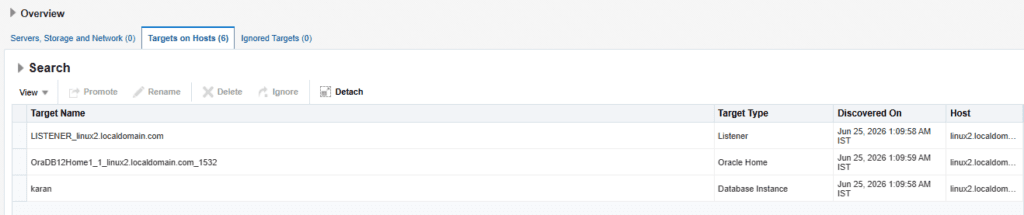
After navigating to the Setup Discovery page, locate the target host where the Oracle Management Agent is deployed. In the Discovered Targets column, click the number corresponding to that host (for example, 3 in the screenshot). This opens the list of all unmanaged targets discovered by the Management Agent, such as Oracle Databases, Listeners, ASM instances, and other supported components available for promotion to Oracle Enterprise Manager Cloud Control.
Step 3) Select the Target
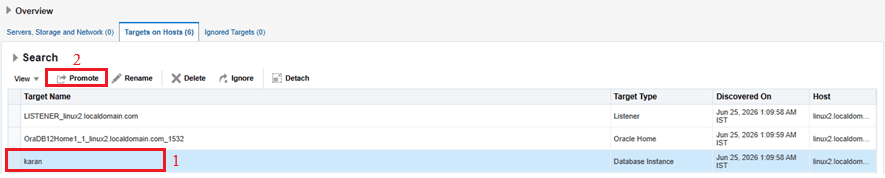
Select the target you want to add to Oracle Enterprise Manager Cloud Control. You can choose one or multiple discovered targets, depending on your environment. After selecting the target, click Promote to begin the target registration process.
Step 4) Verify the DBSNMP Monitoring User
Before promoting an Oracle Database target, ensure that the DBSNMP monitoring user account is unlocked and the password is known. Oracle Enterprise Manager uses the DBSNMP account to connect to the database and collect monitoring information. If the account is locked or the password is unknown, the database target promotion will fail during the credential validation process.
To check the account status:

set lines 999 pages 999
col username for a30
select username,account_status from dba_users where username='DBSNMP';

If the account is locked, unlock it using:

ALTER USER dbsnmp ACCOUNT UNLOCK;

If you do not know the current password, reset it before proceeding:

ALTER USER dbsnmp IDENTIFIED BY YourPassword;

After unlocking or resetting the password, use the same DBSNMP username and password when Oracle Enterprise Manager prompts for monitoring credentials during the target promotion process.
Step 5) Add the Database Target Manually (Optional)
If the Oracle Database does not appear under Auto Discovery Results, you can manually add it to Oracle Enterprise Manager Cloud Control.
Setup → Add Target → Add Targets ManuallySelect Add Non-Host Targets by Specifying Target Monitoring Properties, choose Oracle Database, and provide the required target details such as the database name, Oracle Home, host, listener information, and monitoring credentials.
Before adding the database manually, ensure that the Oracle Management Agent is running on the target host and can communicate successfully with the Oracle Management Server (OMS). Also, verify that the DBSNMP user account is unlocked and that you know its password, as these credentials are required to establish the monitoring connection.
Once the required information is provided and validated successfully, click Test Connection and then OK to register the database target. After the target is added, it will appear under the Targets menu, where you can monitor its health, performance, availability, and configuration details.
Step 6) Verify Target Availability
Navigate to Targets → All Targets and confirm that the promoted target is displayed with a status of Up. Once the target is successfully added, Oracle Enterprise Manager immediately begins collecting performance and availability metrics.


Conclusion
In this article, we successfully completed Discovering and Monitoring Targets in OEM 13c by adding Oracle Database, Listener, and Host targets to Oracle Enterprise Manager Cloud Control. We explored how to use the Auto Discovery Results feature to identify unmanaged targets and discussed how to manually add a database target when it is not detected automatically.
We also covered the importance of configuring the required monitoring credentials, verifying the DBSNMP account, validating connectivity, and promoting targets for centralized monitoring. Once a target is successfully promoted, Oracle Enterprise Manager begins collecting performance metrics, monitoring availability, generating alerts, and providing valuable insights into the overall health of your Oracle environment.
Discovering and Monitoring Targets in OEM 13c is a key step in building a centralized monitoring solution, allowing DBAs to proactively manage Oracle databases, listeners, hosts, and other enterprise targets from a single console.
In the next article, we will explore OEM 13c Administration and Maintenance, where we will cover common administration tasks, repository maintenance, agent management, monitoring configuration, backup recommendations, and troubleshooting best practices for Oracle Enterprise Manager Cloud Control.
📚 OEM 13c Installation Guide Series
✅ Part 1 – Oracle Linux 8.10 Installation
✅ Part 2 – Oracle Database 19c Software and Database Installation
✅ Part 3 – Preparing the OEM Repository Database
✅ Part 4 – Oracle Enterprise Manager 13c Cloud Control Installation
✅ Part 5 – OEM 13c Agent Deployment Using Pull Method
✅ Part 6 – OEM 13c Agent Deployment Using Push Method
✅ Part 7 – Discovering and Monitoring Targets in OEM 13c (Current Article)
📖 Reference Guides
• OEM 13c Useful OMS and Agent Commands
👉 View Complete OEM 13c Installation Guide